Saturday, May 6, 2017

Revit User Programming - Not Originally in the Cards

A quick post today with an excerpt from a LinkedIn post I had written: Reflections on RTC North America 2015, This conference was was in Washington D.C (or at least very close:)).

The keynote slot was a real treat for all in attendance. The two founders of Revit, Leonid Rais and Irwin Jungreis were interviewed in a “late night talk show” type setting. They talked about their inspiration and motivation to develop Revit from the ground up. Both came from a mechanical/manufacturing background with little to no building design or construction experience. Their first employees were architects to help mold the product into what it is today. It is pretty amazing how much of the core features have not changed that much since the early days. Several of the early Revit Technology Cooperation staff were also interviewed, including Marty Rozmanith, David Conant, Steve Burri, Dave Heaton, Harry Mattison, Matt Jezyk and Richard Taylor. At the end, they all gathered for a group photo which included a few early adopters like Wesley Benn (RTC Events Management founder), Jim Balding (RTC-NA Region Chairman), Phil Read (RTC Global Director of Marketing and Communications), Scott Brown, and Scott Davis. Fun stuff.


I encourage any aspiring Revit guru to go to AUGI.com and search for old posts by Leonid Rais (LRaiz) and Irwin Jungreis (irwin). Although some of the Revit inter-working’s have changed since their posts, which range from 2003 – 2013, one can gain some significant insight! There are great discussions on rounding, backwards compatibility and much more. One comment Leonid made, which I clearly recall and generally agreed with at the time, was this… in response to an architect asking where to start in order to learn to program, he said “Unless you want to change your profession then save your time and stick to architecture. I think it is silly to expect that a non-professional programmer might be able to develop anything significant in for an application as complicated as Revit.” Looking at the number of classes on programming, including one by me (JavaScript programming in Revit using LazJS), and the groundswell around Dynamo, this sentiment has clearly not been shared by the design community. Additionally, the OP of that thread went on to create some really nice tools such as Keynote Manager (http://www.revolutiondesign.biz/products.html).

Friday, May 5, 2017

Autodesk Insight 360 - Floors; Part 1

Following my series of posts on Walls and Window to Wall Ratios, I will shift gears and take a look a Floors in the context of energy modeling in Revit and Autodesk Insight 360. Again, looking at these various parts in detail, separately, should help to better understand how simple, yet powerful Revit and Insight are.

For today's example I will use the model from my Residential Design using Autodesk Revit 2018 textbook. This book is the #1 Revit textbook in the education market in the USA.


Notice the various floor conditions in this cutaway view of the model.

This is what the Energy Analytical Model (EAM) looks like for this project.

  • Regressing to walls, for a moment, notice the difference between the foundation walls adjacent to occupiable space (i.e. basement area) versus unexcavated space.

For the EAM view, notice I narrowed things down to just the analytical "floors".


This model has three of the four possible floor conditions.

The second-floor floors are all defined at Interior Floors.


The main-level floors are all defined at Slab on Grade floors. Only the garage floor is technically slab on grade, but for the EAM this means any floor at grade (as defined in the Energy Settings dialog).


Finally, the basement floors are automatically defined at Underground Floors.


The fourth analytical floor type not represented here is Raised Floor, which is a floor open to the air underneath.

Keep in mind it does not matter how the Revit floor is defined in the model, including the Function setting (Interior or Exterior). If the floor is inside the building, it is inside the building. The EAM algorithm figures that out on its own. The only setting that does matter, in terms of defining the EAM, is Room Bounding; when un-checked, the element will be ignored and is thus not part of the EAM.

  • Tip: Un-check Room Bounding for walls around a trash enclosure so they are ignored (sorry, went back to "walls" again).

Stay tuned for more on the floors in Revit's EAM and in Autodesk Insight 360.

For more on surfaces in the EAM, take a look at this About Surfaces in the Energy Model.

Thursday, May 4, 2017

AIA Minnesota Event: Tour LHB's Virtual Reality Lounge

Today, 4 May 2017, I will be giving a tour of our Virtual Reality Lounge in our Duluth office. This is an AIA Minnesota event hosted by the AIA Northern Minnesota chapter.

Event details: https://www.aia-mn.org/event/lhb-virtual-reality-lounge-tour/

I wrote a little about the VR Lounge earlier this week, towards the end of this post: http://bimchapters.blogspot.com/2017/04/nvidia-quadro-p5000-for-aec-vr-best.html

Looking forward to it...


Wednesday, May 3, 2017

Soffit and Bulkhead Modelling in Autodesk Revit

In Revit, creating soffits and bulkheads have some challenges in terms of how line work and layers clean-up in ceiling plans, elevations and sections. Specifically, the main issue has to do with the fact that the finish materials (i.e. wall system Layers) cannot wrap at the top and bottom of a wall (see Typical Problem image). The following method is not perfect, but gets things a little closer to reality.

Typical Problem: two walls (vertical) and a ceiling (horizontal)
Start by creating a unique wall System Type with the word “soffit” in the name; this wall type will only be used for soffits and bulkheads. For this new wall type, add a Sweep to the bottom of the wall (see Solution image).
Solution: Add a sweep to the bottom of the wall 
When this wall is joined with a ceiling, the sweep will join with the adjacent finishes when they are the same material.

The gypsum board profile for the sweep can be parameterized, so you have one for each stud size.

Here is how it’s done…

Creating a Profile for the Sweep

First, create a simple Profile in the family editor. This profile should be set to the thickness of your gypsum board, and the length equal to the depth of your studs.

You can add parameters/dimensions to this profile and then create Types to accommodate various conditions.

Profile:  Simple profile create to represent the gypsum board on the bottom of the wall

Setting up the wall type

The next step is to set up a special wall type in your project (or better, template). Duplicate your typical wall type; this is the one you normally use for soffits and bulkheads in Revit now. Add the prefix “Soffit” to all the wall types to sort them in the Type Selector. This wall type could still be based on your standard wall type. For example: M3 Soffit, where M3 is the name of the typical wall type.

Now you need to edit the structure for the new soffit wall type. As seen in the Edit Assembly dialog below, you need to set the View option to “Section” to be able to work with Sweeps.


Edit Assembly dialog for soffit wall
In the Wall Sweeps dialog, you will employ the profile previously created and loaded into the project. Add a sweep to the list, select your profile and then position it so it aligns with the stud (side to side) and cuts into the stud (from the bottom) the thickness of the profile (note the image below). The Material should also be set to match the typical wall so the profile cleans up with the gypsum board Layer in the adjacent walls/ceilings.
Wall Sweeps dialog for soffit wall

Wall Function

Now that you have a separate wall type, you should set the type parameter Function to Soffit.

Soffit wall settings

Examples

The following images highlight the results of this effort.

The first image shows a bulkhead with two hard ceilings engaging it. The Join command was used to get the materials to clean up. If you want the hard ceiling framing to extend to the bulkhead studs, you need to manually edit the sketch in plan, and make the edge of the ceiling touch the edge of the stud Layer.

  • TIP: In this example, the stud layer was unlocked within the wall, so the gypsum board could be shown stopping apart from the wall stud layer.


Bulkhead with hard ceilings (joined)
This next image shows a bulkhead with two suspended ACT-type ceilings on each side. In this case, the materials do not match. So, even if the ceiling and “soffit” wall were joined, they would not clean up.

Bulkhead with ACT ceilings
The next example is a simple soffit. This shows a soffit wall with gyp. bd. only on a single side of the wall. The hard ceiling is then joined with the wall and cleans up as shown. So you might want separate “Soffit” and “Bulkhead” wall types.

  • FYI: all these ceilings were drawn with the Automatic sketch option.


Soffit condition

Not Perfect

So what’s the downside to this process? You get an extra line in the ceiling plan, which represents the back side of the gypsum board on the (soffit) wall. With lineweights and printing, this ends up looking more like a heavy line, rather than two lines (because they are so close together). I know of no way to get around this. You remove it manually, using the Linework tool set to Invisible. But that is a lot of work, and probably not worth the effort.

Interior elevations do not have this problem. They look great.


Extra line appears at soffit condition in RCP

TIP: Changing the value for Line Weight number 2 will adjust the way fill patterns print in Revit (Manage tab à Additional Settings à Line Weights). Be careful, however, as you could also change other lines which have been set to this line weight number as well.


3D view with a Section Box


Rendered 3D view with a Section Box

This workflow is easy to setup in a template and use in a project. Good luck!


Tuesday, May 2, 2017

Autodesk Home Use License

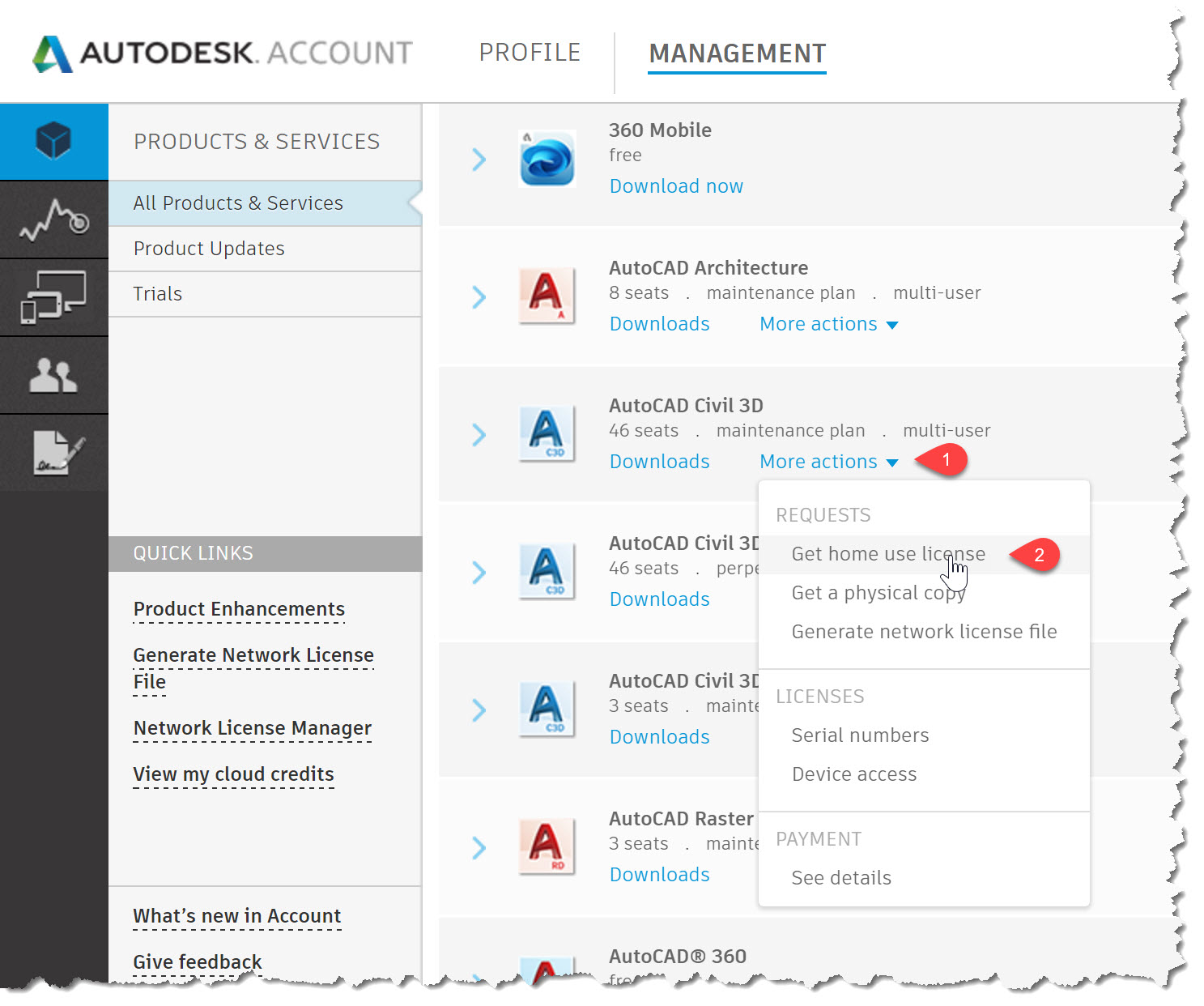
If you have Autodesk network licenses, for Revit or AutoCAD Civil 3D for example, on subscription you can request the same number of home use licenses to share with staff.

You can read more about this program here; Autodesk Home Use Rights

Using Remote Desktop is usually a better option as it has all your add-in, drive letters and more. But home use is great for testing new software and working at the cabin with no WiFi.

This program provides a separate serial number for each product you submit. Staff use that number when installing that home. This license cannot be installed in the office - that would get you in trouble.

Here are a few related screen shots...

Products listed via manage.autodesk.com


Monday, May 1, 2017

Revizto Export Scheduler for Timely Collaboration

Using Revizto is a great way to visualize and collaborate on a project. Everyone who works on vertical projects (i.e. buildings) at LHB has been trained on it and has access to it.

When a Revit model, and its sheets, are exported to Revizto we can sync this model to the cloud and share with other team members; this can be any Revizto user, or if we share with a non-paying Revizto user they consume one of our licenses. This cloud-based data can then be viewed on a computer, iPad or a Microsoft Surface with ease.

The Revizto license is tied to the user, not the computer, so staff can install Revizto on anything and login with their credentials. Once logged in they are presented with all the projects that they created or have been shared with them as shown below.


Notice, in this example some projects are Local and others are in the Cloud. For cloud-based models, you can not look at an outdated model unless you are offline. Clicking on a project with Update available (as shown above) will automatically download the newer version.

With Revizto's new export scheduler tool, it is easy to keep that collaborative cloud-based model updated. We have some projects scheduled to export in the middle of the night. This means that the Revizto model is never more than 24 hours old.

The image below shows the standalone app which controls the export of a Revit model. Here you can set the schedule and also see a history of exports. In this case there are two nights were something went wrong. For the most part, this process works flawlessly. But the computer needs to be left on and logged in. Revit does not need to be open, but Revit must be installed on the computer.


A couple cool Revitzo features to close out this post...

Section Cut: applied to any surface (horizontal or vertical) and then drag gizmo to adjust. Super smooth adjustment, even on our 1.2 million SF project with MEP included!

Map mode: switch levels, toggle grid and room names, plus click to move around building. Revizto levels derived from Revit levels, of course.


Autodesk Insight 360 - Walls; Part 7

As a follow up to my previous Insight 360 post, Autodesk Insight 360 - Walls; Part 6, it is helpful to know what happens when a Revit wall element does not have a thermal value (or one that is too low).

This only applies when Detailed Elements is checked in the Energy Setting > Advanced Energy Settings dialog,


If a material does not have a Thermal asset, it will not contribute to the wall assemblies thermal properties. Notice here, in the image below, that a Thermal asset may be deleted, The adjacent buttons allow a Thermal asset to be copied or replaced with another property.

  • For example, a wood stud wall could have the Thermal properties of batt insulation applied in place of the wood studs, which has much lower thermal properties alone. The drawback is that this trick does not account for the batt insulation in material take offs, but does not affect the total wall thickness either.


In this example, using the model from the previous post, I removed all the thermal assets associated with the materials used by the exterior wall as seen in the image below.


When I push the EAM out to Insight 360 I get an email stating that an error occurred and the model could not be processed. Notice, in the next image, the indication is that wall is too thin or the thermal properties are too low.


Once a model is in Insight 360 it is possible to select a surface and see "aim" number. If this were a large complex project with just a few walls causing the problem, I am not sure if there is a way to dial in quickly using this number.

Creating a schedule like the one below would be the best bet, looking for exterior walls with low or no thermal resistance.