Friday, May 5, 2017

Autodesk Insight 360 - Floors; Part 1

Following my series of posts on Walls and Window to Wall Ratios, I will shift gears and take a look a Floors in the context of energy modeling in Revit and Autodesk Insight 360. Again, looking at these various parts in detail, separately, should help to better understand how simple, yet powerful Revit and Insight are.

For today's example I will use the model from my Residential Design using Autodesk Revit 2018 textbook. This book is the #1 Revit textbook in the education market in the USA.


Notice the various floor conditions in this cutaway view of the model.

This is what the Energy Analytical Model (EAM) looks like for this project.

  • Regressing to walls, for a moment, notice the difference between the foundation walls adjacent to occupiable space (i.e. basement area) versus unexcavated space.

For the EAM view, notice I narrowed things down to just the analytical "floors".


This model has three of the four possible floor conditions.

The second-floor floors are all defined at Interior Floors.


The main-level floors are all defined at Slab on Grade floors. Only the garage floor is technically slab on grade, but for the EAM this means any floor at grade (as defined in the Energy Settings dialog).


Finally, the basement floors are automatically defined at Underground Floors.


The fourth analytical floor type not represented here is Raised Floor, which is a floor open to the air underneath.

Keep in mind it does not matter how the Revit floor is defined in the model, including the Function setting (Interior or Exterior). If the floor is inside the building, it is inside the building. The EAM algorithm figures that out on its own. The only setting that does matter, in terms of defining the EAM, is Room Bounding; when un-checked, the element will be ignored and is thus not part of the EAM.

  • Tip: Un-check Room Bounding for walls around a trash enclosure so they are ignored (sorry, went back to "walls" again).

Stay tuned for more on the floors in Revit's EAM and in Autodesk Insight 360.

For more on surfaces in the EAM, take a look at this About Surfaces in the Energy Model.

Thursday, May 4, 2017

AIA Minnesota Event: Tour LHB's Virtual Reality Lounge

Today, 4 May 2017, I will be giving a tour of our Virtual Reality Lounge in our Duluth office. This is an AIA Minnesota event hosted by the AIA Northern Minnesota chapter.

Event details: https://www.aia-mn.org/event/lhb-virtual-reality-lounge-tour/

I wrote a little about the VR Lounge earlier this week, towards the end of this post: http://bimchapters.blogspot.com/2017/04/nvidia-quadro-p5000-for-aec-vr-best.html

Looking forward to it...


Wednesday, May 3, 2017

Soffit and Bulkhead Modelling in Autodesk Revit

In Revit, creating soffits and bulkheads have some challenges in terms of how line work and layers clean-up in ceiling plans, elevations and sections. Specifically, the main issue has to do with the fact that the finish materials (i.e. wall system Layers) cannot wrap at the top and bottom of a wall (see Typical Problem image). The following method is not perfect, but gets things a little closer to reality.

Typical Problem: two walls (vertical) and a ceiling (horizontal)
Start by creating a unique wall System Type with the word “soffit” in the name; this wall type will only be used for soffits and bulkheads. For this new wall type, add a Sweep to the bottom of the wall (see Solution image).
Solution: Add a sweep to the bottom of the wall 
When this wall is joined with a ceiling, the sweep will join with the adjacent finishes when they are the same material.

The gypsum board profile for the sweep can be parameterized, so you have one for each stud size.

Here is how it’s done…

Creating a Profile for the Sweep

First, create a simple Profile in the family editor. This profile should be set to the thickness of your gypsum board, and the length equal to the depth of your studs.

You can add parameters/dimensions to this profile and then create Types to accommodate various conditions.

Profile:  Simple profile create to represent the gypsum board on the bottom of the wall

Setting up the wall type

The next step is to set up a special wall type in your project (or better, template). Duplicate your typical wall type; this is the one you normally use for soffits and bulkheads in Revit now. Add the prefix “Soffit” to all the wall types to sort them in the Type Selector. This wall type could still be based on your standard wall type. For example: M3 Soffit, where M3 is the name of the typical wall type.

Now you need to edit the structure for the new soffit wall type. As seen in the Edit Assembly dialog below, you need to set the View option to “Section” to be able to work with Sweeps.


Edit Assembly dialog for soffit wall
In the Wall Sweeps dialog, you will employ the profile previously created and loaded into the project. Add a sweep to the list, select your profile and then position it so it aligns with the stud (side to side) and cuts into the stud (from the bottom) the thickness of the profile (note the image below). The Material should also be set to match the typical wall so the profile cleans up with the gypsum board Layer in the adjacent walls/ceilings.
Wall Sweeps dialog for soffit wall

Wall Function

Now that you have a separate wall type, you should set the type parameter Function to Soffit.

Soffit wall settings

Examples

The following images highlight the results of this effort.

The first image shows a bulkhead with two hard ceilings engaging it. The Join command was used to get the materials to clean up. If you want the hard ceiling framing to extend to the bulkhead studs, you need to manually edit the sketch in plan, and make the edge of the ceiling touch the edge of the stud Layer.

  • TIP: In this example, the stud layer was unlocked within the wall, so the gypsum board could be shown stopping apart from the wall stud layer.


Bulkhead with hard ceilings (joined)
This next image shows a bulkhead with two suspended ACT-type ceilings on each side. In this case, the materials do not match. So, even if the ceiling and “soffit” wall were joined, they would not clean up.

Bulkhead with ACT ceilings
The next example is a simple soffit. This shows a soffit wall with gyp. bd. only on a single side of the wall. The hard ceiling is then joined with the wall and cleans up as shown. So you might want separate “Soffit” and “Bulkhead” wall types.

  • FYI: all these ceilings were drawn with the Automatic sketch option.


Soffit condition

Not Perfect

So what’s the downside to this process? You get an extra line in the ceiling plan, which represents the back side of the gypsum board on the (soffit) wall. With lineweights and printing, this ends up looking more like a heavy line, rather than two lines (because they are so close together). I know of no way to get around this. You remove it manually, using the Linework tool set to Invisible. But that is a lot of work, and probably not worth the effort.

Interior elevations do not have this problem. They look great.


Extra line appears at soffit condition in RCP

TIP: Changing the value for Line Weight number 2 will adjust the way fill patterns print in Revit (Manage tab à Additional Settings à Line Weights). Be careful, however, as you could also change other lines which have been set to this line weight number as well.


3D view with a Section Box


Rendered 3D view with a Section Box

This workflow is easy to setup in a template and use in a project. Good luck!


Tuesday, May 2, 2017

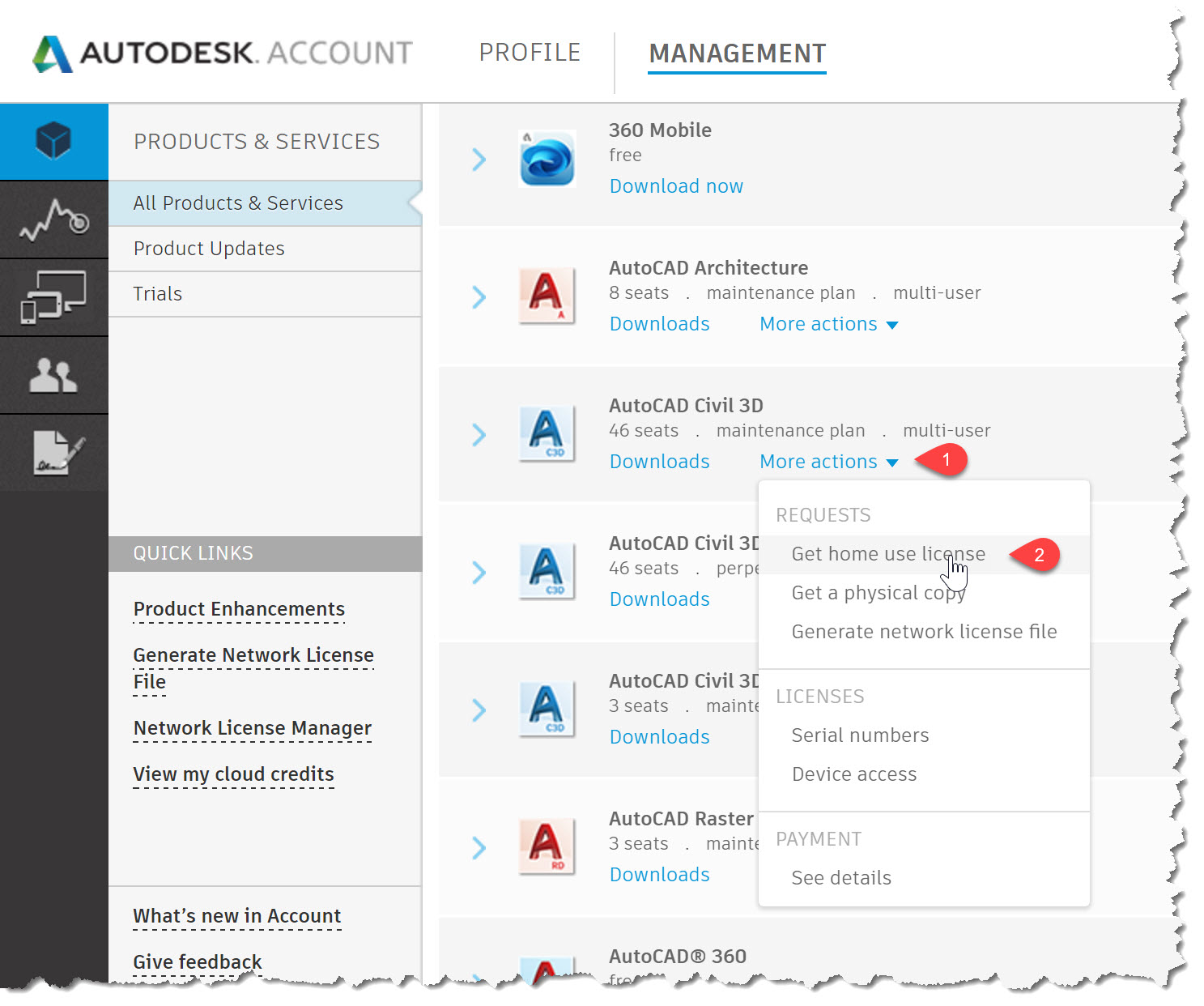
Autodesk Home Use License

If you have Autodesk network licenses, for Revit or AutoCAD Civil 3D for example, on subscription you can request the same number of home use licenses to share with staff.

You can read more about this program here; Autodesk Home Use Rights

Using Remote Desktop is usually a better option as it has all your add-in, drive letters and more. But home use is great for testing new software and working at the cabin with no WiFi.

This program provides a separate serial number for each product you submit. Staff use that number when installing that home. This license cannot be installed in the office - that would get you in trouble.

Here are a few related screen shots...

Products listed via manage.autodesk.com


Monday, May 1, 2017

Revizto Export Scheduler for Timely Collaboration

Using Revizto is a great way to visualize and collaborate on a project. Everyone who works on vertical projects (i.e. buildings) at LHB has been trained on it and has access to it.

When a Revit model, and its sheets, are exported to Revizto we can sync this model to the cloud and share with other team members; this can be any Revizto user, or if we share with a non-paying Revizto user they consume one of our licenses. This cloud-based data can then be viewed on a computer, iPad or a Microsoft Surface with ease.

The Revizto license is tied to the user, not the computer, so staff can install Revizto on anything and login with their credentials. Once logged in they are presented with all the projects that they created or have been shared with them as shown below.


Notice, in this example some projects are Local and others are in the Cloud. For cloud-based models, you can not look at an outdated model unless you are offline. Clicking on a project with Update available (as shown above) will automatically download the newer version.

With Revizto's new export scheduler tool, it is easy to keep that collaborative cloud-based model updated. We have some projects scheduled to export in the middle of the night. This means that the Revizto model is never more than 24 hours old.

The image below shows the standalone app which controls the export of a Revit model. Here you can set the schedule and also see a history of exports. In this case there are two nights were something went wrong. For the most part, this process works flawlessly. But the computer needs to be left on and logged in. Revit does not need to be open, but Revit must be installed on the computer.


A couple cool Revitzo features to close out this post...

Section Cut: applied to any surface (horizontal or vertical) and then drag gizmo to adjust. Super smooth adjustment, even on our 1.2 million SF project with MEP included!

Map mode: switch levels, toggle grid and room names, plus click to move around building. Revizto levels derived from Revit levels, of course.


Autodesk Insight 360 - Walls; Part 7

As a follow up to my previous Insight 360 post, Autodesk Insight 360 - Walls; Part 6, it is helpful to know what happens when a Revit wall element does not have a thermal value (or one that is too low).

This only applies when Detailed Elements is checked in the Energy Setting > Advanced Energy Settings dialog,


If a material does not have a Thermal asset, it will not contribute to the wall assemblies thermal properties. Notice here, in the image below, that a Thermal asset may be deleted, The adjacent buttons allow a Thermal asset to be copied or replaced with another property.

  • For example, a wood stud wall could have the Thermal properties of batt insulation applied in place of the wood studs, which has much lower thermal properties alone. The drawback is that this trick does not account for the batt insulation in material take offs, but does not affect the total wall thickness either.


In this example, using the model from the previous post, I removed all the thermal assets associated with the materials used by the exterior wall as seen in the image below.


When I push the EAM out to Insight 360 I get an email stating that an error occurred and the model could not be processed. Notice, in the next image, the indication is that wall is too thin or the thermal properties are too low.


Once a model is in Insight 360 it is possible to select a surface and see "aim" number. If this were a large complex project with just a few walls causing the problem, I am not sure if there is a way to dial in quickly using this number.

Creating a schedule like the one below would be the best bet, looking for exterior walls with low or no thermal resistance.


Sunday, April 30, 2017

NVIDIA Quadro P5000 for AEC VR; Best Architectural Experience Yet

LHB has been using virtual reality (VR) a lot over the last year and I am heading up that effort. We are using it for everything from internal design review to public meetings, groundbreakings and grand openings.

VR at Grand Opening for Duluth Transportation Center

VR Across Disciplines

While architecture is the main use case, we have used VR for multiple civil projects (urban street & utilities project and a historic bridge restoration project) and fairly complex pipeline projects (pump stations).

For more on our urban street project and our use of the Quadro P5000, check out these two NVIDIA links:


VR Model of Urban Street and Utilities Replacement Project

Graphics Card is the Bottleneck for VR Experience

We use various VR hardware and software; Oculus Rift, HTC Vive and Enscape, Fuzor, Revizto, Regardless of the combination of these, the bottle neck in performance is the graphics card (GPU). I have used several NVIDIA cards for VR, for example:

  • GeForce GTX 980
  • GeForce GTX 1070 (in my Alienware laptop)
  • GeForce GTX 1070 x 2 SLI (in our VR Lounge)
  • GeForce GTX 1080
  • Quadro P5000

The Quadro P5000 has produced the absolute best experience in VR for our complex projects. When we got this card I expected the improvement, if any, to be moderate. I was amazed at the significant improvement, even over the SLI'ed setup in out VR Lounge (more on this later).

When I first realized the difference, I had these two systems setup right next to each other:

  • HTC Vive powered by a Dell Percision 5810 with the Quadro P5000
  • HTC Vive powered by an Alienware Area 51 with the GTX 1070 x 2 (SLI)
I tested the same large complex model; a school with complete structure, MEP and a detailed food service model. The SLI'ed setup was choppy and uncomfortable compared to the P5000, which was very smooth and responsive.

Clearly the magic of the P5000 comes from the GPU's Pascal architecture, 2560 CUDA cores and 16 GB of GDDR5X memory! Yes, you read that correctly, 16 GB of on-board memory.
NVIDIA Quadro P5000 Specs
Another great thing about a VR Ready Quadro-based graphics card is that many large computer manufactures do not offer consumer grade hardware, such as the GeForce cards, with their lease programs. Given many medium to large AEC firms buy via lease programs, getting a VR capable card meant ordering a computer without a graphics card and then buying the graphic card separately. This complicates things, including service/warranty programs.

Even though the Quadro P5000 card has a high MSRP compared to the GeForce GTX cards it is often the case that hardware and software are much less when purchased as a package from Dell, HP, etc.

Fuzor Leverages NVIDIA Features to Maximize Performance

We have been using Fuzor a lot with the HTC Vive for its nice array of in-VR user features. For the NVIDIA Customer Story listed above, the folks at Kalloc Tech gave me this list, which highlights the NVIDIA features directly supported by Fuzor:
  • Features which only work on NVIDIA cards
    • VR SLI support using NVIDIA VRWorks, where each video card renders one eye.
    • Multi-projection support from NVIDIA VRWorks, where a single NVIDIA Pascal series card can render two eyes simultaneously.
    • Fast and accurate light analysis reports using NVIDIA OptiX raytracing.
    • Multi-threaded rendering using DirectX11 Driver Command Lists for faster performance.

  • Features which work on any card, but were created by NVIDIA
    • PhysX for avatar walkthrough, vehicle driving, refit collision, clash detection, and filtered scene queries for many different features.
    • NVIDIA ShadowWorks for high quality ambient occlusion.

Thus, for the dual GTX 1070 (SLI) cards in our VR Lounge, there is one card for each eye in the Head Mounted Display (HMD). But, even this setup does not keep up with the Quadro P5000!

A Look at the Hardware

I want to share my experience setting up the Quadro P5000, which replaced a GeForce GTX 1080 in a Dell Precision 5810 (this is the computer we take on the road). With this information in hand, anyone can jump right in and start leveraging the full potential of this card for VR.

As seen in the image below, the form factor of the P5000 and 1080 is pretty much the same.

Quadro P5000 and GeForce GTX 1080 Have Similar Form Factors

The biggest surprise I had when opening the P5000 is when I noticed there was no HDMI port on a VR Ready graphics card; compare the two images below. More on this in a moment...

GeForce GTX 1080; 1 HDMI, 3 Display Port, 1 DVI

Quadro P5000; 4 Dusplay Port, 1 DVI

The next image shows the GeForce GTX 1080, which is about to be removed.

GeForce GTX 1080 in Dell Precision 5810

Here is the Quadro P5000 seated and powered.

Quadro P5000  in Dell Precision 5810
Both cards require an adapter to properly power them. This cable came with the GTX cards, and was already in some of our Dell computers but was not in use as the Quadro M2200 GPU did not need this much power.

Required Power Adapter for Both

DisplayPort to HDMI 1.4 or DVI to HDMI 1.4
Back to the no HDMI port issue... the NVIDIA website lists two tested Video Adapters;

  • Accell B086B-004B-2
  • Bizlink KS10046-A07

This is the one I ordered from Amazon: http://amzn.to/2pugQcL (see the next two images). This is required for full transmission of audio and video.

I started with multiple adapters I had on hand; DP > DVI > HDMI. This worked, but there was no sound.

DP to HDMI - Required Video Adapter for P5000 (not included)

DP to HDMI - Required Video Adapter for P5000 (not included)

LHB's VR Lounge

In our Duluth office, we remodeled an underutilized space to create a VR Lounge. The large "lounge" space adjacent to the "play area" allows others to see what the VR user sees on the large 4k screen on the wall. The "play area" is in an alcove, which is perfect as it naturally keeps people out of the way of the line-of-sight sensors.

LHB VR Lounge - Large 4k screen on wall

LHB VR Lounge - Lake Superior Visible from Here!

LHB VR Lounge

LHB VR Lounge with Built-in HTC Vive Sensors; Dual GTX 1070's

VR in the Media

We have received a lot of attention from the media given our extensive use of VR and recent presentation on VR at the Minnesota AIA Convention.

The image below is reporter Melissa Colorado from Twin Cities NBC affiliate KARE11 trying the HTC Vive in our Minneapolis office. Check out this link for her story: http://kare11.tv/2pL2Azc


The ABC affiliate in Duluth, MN, WDIO, has done two stories on our use of VR recently:


Minneapolis Start Tribune article: Virtual reality brings architect's blueprints to life

Finally, check out this ARCHITECT Magazine article, Michael Kilkelly, in which I was interview for: http://bit.ly/2pvdhDa

Conclusion

At the end of the day, if a large complex project is not comfortable for staff or your client, they are not going to spend much time using it. Given all the other challenges of keeping drivers and software up to date, having this high performance, engineering-grade, graphics card is simply wonderful. I have felt a lot more comfortable getting in front of clients, the media and even the Minnesota Lt. Governor Tina Smith recently!

For some additional reading on this topic, check out this AEC Magazine article which gets into more technical details on the Quadro P5000's big brother, the P6000 (with 24 GB of memory):
http://aecmag.com/technology-mainmenu-35/1268-review-scan-3xs-ultimate-3d-with-nvidia-quadro-p6000

Fun stuff.