Wednesday, May 17, 2017

Bridging the Gap with Enscape and Revit

Autodesk Revit is made to design buildings, but that doesn't mean we can't push the limits here and there. In an effort to expand the use of Virtual Reality (VR) across the various disciplines at LHB, I have helped nurture a few unconventional projects in Revit to that end. Why Revit? It is the primary 3D modelling tool we use and it has good friends in the VR business; Enscape, Revizto and Fuzor to name a few.

In this post I want to share some nice still images, of a historic bridge restoration project, from Enscape. In my last Enscape post I talked about an urban streetscape project executed in Revit for VR.

Everything in this model was created in Revit and viewed in Enscape (for this post). The surface was derived from an AutoCAD Civil 3D file created by one of our in-house survey crews. Plus, more vehicles downloaded from the web, which are imported DWGs.

  • Be sure to clink on the images to see more detail in the enlargements (they are all 4k images; approx. 15mb PNGs).


Wait, something's wrong with the color of this pickup truck...

The material is currently set to Wall Paint. Even though it is set to "Glossy" the concept is fundamentally different car paint.

So, let's change that material to use a Metallic Paint, where there is a built-in parameter called Top Coat with a Car Paint option!

The result is a "little" better!

The reflection in the truck is super cool...
 
This actually is a really large lake... not Lake Superior, but one of the 10,000 lakes in Minnesota.

The shoreline and road/tress in the distance look so realistic!

This one is for Autodesk University start and Revit MEP guru David Butts!

While in motion the water appears to be moving in Enscape. Still images produce a beautiful water appearance with reflections.

In reality, the stones are not this smooth, but they have an applied texture created from a photo of the existing stone. The special Enscape Grass is amazing in this context!

The survey showed existing picnic benches, so why not add them.

Nice view of the bridge from this picnic bench.

All the previous images show the Enscape replacement for the ArchVision RPC content (i.e. the vegetation). Enscape supports the RPC content, and the remaining images show them. Love the reflection on the postal van.


Ignore the fact that there are vehicles flying down the road with nobody in them! Well, in the future I suppose this could be a thing; someone texted their car to pick them up!

Fun stuff!

Tuesday, May 16, 2017

NVIDIA Announces AI for Rendering

There is a lot of amazing advancements in the world of rendering. One worthy of a quick post is the NVIDIA announcement, last week at their GPU Technology Conference in Silicon Valley, by CEO and founder Jensen Huang. They have incorporated Artificial Intelligence (AI) to the rendering process... which "predicts the final images from only partly finished results".

They say this can be applied to many different rendering engines. They have already incorporated it into iRay.


The article gets into some cool details about how they trained the AI.

Super cool and scary at the same time:)

BTW, I did not get to attend this conference, but I know BILT Committee member Nicholas Kramer was there, so I look forward to hearing what he thought of this announcement and the conference in general!

Binding Revit Links - Part 3

There is one problem with binding linked models with phasing; it don't work!

A while back, friend and Revit guru, Nancy McClure Tweeted about the pain of waiting for big links to bind. I replied, something like "I hope they don't have phases"... shortly after, she relied something like "oh no". Then Aaron Maller joined in and we chatted about all the challenges with this task.

I will demonstrate the problem with a version of my Law Office model that has three phases with some demolition.

Level 1 Floor Plan
Phase: Existing

Level 1 Floor Plan; from my Design Integration using Autodesk Revit 2018 textbook
Phase: Phase 1

Level 1 Floor Plan
Phase 1 elements to be demolished


Level 1 Floor Plan; from my Interior Design using Autodesk Revit 2018 textbook
Phase: Phase 2


Next, let's start a new project. The default template has two phases; Existing and New Constriction. The model we will be linking, as just shown above, has Existing, Phase 1, Phase 2 and Future.


When a Revit model is linked, we have access to all the phases in that link.


Revit even lets us select the link, click Edit Type and use Phase Mapping to align phases in the host model with phases in the link.
  • BTW, you should always have the same phases in the host model and the links. They don't have to be named exactly the same, but why wouldn't you. But you do need the same number of phases. Otherwise, things get really messed up graphically (think, phase filters).


However, when we bind this same link, the phasing in the linked model is NOT maintained. They are completely ignored and everything in the linked model is moved to whatever the phase setting is of the current view you are in when you selected the Bind command. Very unfortunate.

In the Level 1 floor plan view, which has it's phase set to New Construction, a phase not in the linked model, I select the linked model and click Bind on the Ribbon. If you recall, from the previous two posts on binding links, there is no "Maintain Phases" option.


  • Revit Idea: Maintaining Revit phases when binding a linked model sounds like a good Revit Ideas item.... oh, wait, I already did that! So, you should vote for it!!!! Click here to do so: Bind Revit Link - Maintain Phases Option.


The result of binding the link in the host model is a mess as seen in the image below. Everything in the linked model is now on the New Construction phase. Elements that were set to be demolished now all have their Phase Demolished parameter set to None! There are rooms on top of room. Not good!


There are some rather painful steps in which we can transfer a model and keep phasing mostly intact. But that will be saved for another day. If you have thoughts or tips on this please comment below!

On a closing note, I find a lot of college interns don't know much about Phasing and Worksets. Knowledge of these two features can help set a student apart from others in getting an internship. That is why all of my Revit tutorial books has a full chapter on Phasing and Worksets!


Monday, May 15, 2017

BILT Blog Speaker Spotlight

Today I was featured on the BILT blog!

In the days leading up to the BILT North America 2017 conference, in Toronto from 3 August, they are introducing speakers and their sessions. This is intended to help attendees pick their sessions.

BILT Blog post: Speaker Spotlight with Dan Stine

I look forward to seeing details about other speakers and their sessions.

Also, for fun, here are links to related podcasts by Marcello Sgambelluri and Carl Storms:

The Simply Complex Podcast

Binding Revit Links - Part 2

Today's post will consist of a few comments about binding Revit links with Grids and Levels.

If your linked model had Grids, it is usually a good idea to bring them in if the host model does not already have them. On the other hand, I usually avoid checking the Levels option.


I like to make sure the host model has all the levels the link model has AND those levels are at the same elevation. They don't need to have the same name, they just need to be at the same elevation. This way, when you bind a link, all the level-hosted elements (which, directly or indirectly, ends up being everything) will reference the levels in the host which are at the same elevation in the linked model.

Here is what happens when you don't follow this advice...

We select a Revit link, click Bind on the Ribbon and check Levels. Next, we select the newly created Group (which used to be the linked model) and click Ungroup on the Ribbon as shown below.


The previously linked/grouped model is now part of the current Revit project. If you applied Attached Details per the previous post, all the annotation is also ungrouped and now directly editable.

Switching to a section or elevation view, we see the levels from the link are now overlapping the levels from the host model. Revit renamed the newly bound levels, which is messy. But what's worse, is there are now multiple levels at the same elevation. This is bad, really bad...


At some point, someone on the project will realize this oversight and will want to "clean house" and delete the extra levels. However, when a level is deleted, Revit quietly deletes all the elements associated with it. I say "quietly" because there is no warnings and, depending on the current view, you may not see anything disappear.

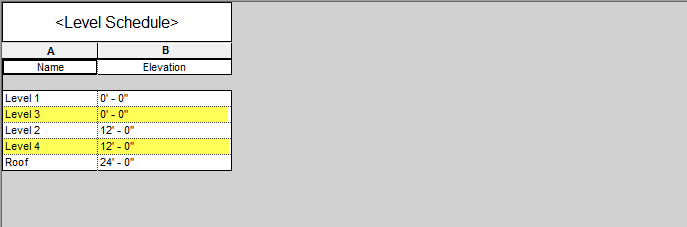
In the image below, I created a schedule to see all the levels in the project. Notice the elevations are the same for some. Again, this is bad and difficult to fix as there is no built-in Revit tool to selected all elements based on which level they are associated with (there are ways to do it, just not built-in).


Another problem one might run into with levels, when binding a Revit link, is if the host levels are not at the same elevation; in this case, the Levels option is not checked while binding. In this case, an element that was associated with Level 2 may now be associated with level 1 and have an odd Offset applied. This is another messy thing to try and correct.

One thing to keep in mind when bringing in grids from a linked model, is that a grid cannot have the same number or letter as another grid. Thus, Revit renames the "new" grids as shown below; the "4" grid was "1" in the linked model.


In summary...

  • Only check Attached Detail if you need the annotation from the link.
  • Bringing in the Grids is generally a good idea, but make sure there are no duplicate numbers/letter in the host model.
  • Make sure the host model has the same Levels AND they are at the same elevations; make new levels in the host model as needed.

The next post will discuss challenges associated with binding Revit models with phasing. Please stay tuned...

Sunday, May 14, 2017

Binding Revit Links - Part 1

There are a number of interesting things about binding Revit links worth posting about. This first one will be on the three options we have in the Bind Link Options dialog, Especially the first one, Attached Details, seeing as it is checked by default. I find a lot of people don't know what this does.


Backing up a minute, before we talk about binding Revit links, the next three images are from the model I will be linking in and be binding into another Revit model.

Level 1 floor plan view with grids, notes, tags and dimensions.

Level 1 - Code Plan is a second Level 1 plan view with a different variety of tags, notes and dimensions.

Level 1 ceiling plan with room tags, text notes and a few spot elevations.


When a Revit model is linked into another Revit model, by default we only see the model elements, grids and levels as shown in the image below; this shows the model above, linked into another model and it is currently selected.


With the link selected, click Bind on the Ribbon. In this example I will select all three options.


Once the model is bound, it becomes a Group. Select the Group and then click the Attached Detail Groups button on the Ribbon.


Notice there is an item for each view that had annotation in the linked Revit model. While we are in the Level 1 floor plan, let's select Floor Plan: Level 1 and see what happens.


The result is that all the annotation from the Level 1 view, in the original linked model, has been added to the current view. Two things to notice: 1) the section is missing, which is another view, and 2) the wall type lost it's type mark because the host model already had that wall type.


Let's switch to the reflected ceiling plan view and do the same thing...


The result is all the annotation, including the spot elevations and room tags have been added to the view.


We can also do this for the code plan view. In this example, the view name in the host model does not match the original view name in the linked model. The view name does not matter. Thus, we can add the annotation to any view, there just needs to be something to host things like dimensions and tags.


Here is the result in the other Level 1 floor plan view.


The attached detail groups can be found in the Project Browser as shown here.


If you don't need the annotation from the linked model, then don't check the Attached Details option while binding - this will make the host file a little larger as well. If you need all the annotation from the various view, then check the box. Once you Bind and Ungourp be sure to remove the link and delete the Group from the Project Browser to clean house in the host model.

Stay tuned for more on binding links; managing levels and what happens when the linked model has phases.

Saturday, May 13, 2017

Revit Show Hidden Lines Overview

Ever since Revit 2015, every model view, except perspective, has an instance parameter called Show Hidden Lines. This parameter has up to three possible options available via a drop-down list; None, By Discipline and All. This is a high-level way in which to control how hidden lines function in a given view.

  • This view parameter can also be controlled by a View Template.


By Discipline

Mechanical and Electrical both have specific hidden line options in their respective settings dialog on the Manage tab. These discipline specific settings can be overridden per the other two options, as we will discuss next.

  • Prior to Revit 2015 By Discipline was the only "hardwired" option. 

None

This setting will turn off all hidden lines controlled by the MEP settings AND those controlled by the Show Hidden Lines tool on the View tab.
  • FYI: The Show Hidden Lines tool has been around for a long time. This tool is used to reveal the outline of an item which is being obscured by another element. This appears to only work when the view’s discipline is set to Architectural or Coordination.
There are a few things None does not affect. This setting does not affect the Beyond line controlled by elements falling between the Bottom and View Depth settings in the View Range dialog. This does not affect the hidden lines set using the Linework tool or line work assigned to the Hidden Lines sub-category within a family. It is interesting, however, that the Show Hidden Lines tool is also dependent on the Hidden Lines sub-category and IS affected by the None setting.

The image below shows a simple reception desk family in plan view, note these three points:
  • Item #1 was set to use Hidden Lines via the Linework tool 
    • Selected line style controls color and pattern
  • Item #2 was set to Hidden Lines via the line’s properties within the family
    • Hidden Line color and pattern controlled by Furniture sub-category
  • Item #3 has Hidden Lines showing using the Show Hidden Lines feature
    • This is a low wall extending under the worksurface
    • Hidden Line color and pattern controlled by Wall sub-category
When Show Hidden Lines is set to None, only the lines related to Item #3 are hidden. Everything else stays the same.

All

This option is interesting in that all obscured edges appear as Hidden Lines in the entire view. The images below show the same reception desk in plan and 3D view. Notice all the 3D geometry is shown through the work and transaction surfaces. Also note that the color and line style is being controlled by the elements sub-category (in this case, furniture). Also, the view scale controls the line pattern size.

Individual hidden lines can be removed using the Linework tool with the line style set to <Invisible Lines>.

This functionality is not available for perspective views nor does it work on linked models. The “All” option is also not an option for MEP plan views.


The “All” option is available for MEP 3D views. The example below is a bit complex but highlights the topic under discussion well.

Discipline: Mechanical, Show Hidden Lines: All


Below are three images of the same area of an MEP ventilation plan, each with a different Show Hidden Lines setting selected. FYI: Because “all” is not an option for the Mechanical discipline (in plan view), the Coordination discipline was used in the “all” example below.

Discipline: Mechanical, Show Hidden Lines: None


Discipline: Coordination, Show Hidden Lines: All 


Discipline: Mechanical, Show Hidden Lines: By Discipline


Another example of using the “All” option for Show Hidden Lines is documenting wall openings in structural drawings. In the first image below, a plan view, we see an opening in the wall. Prior to Revit 2015, if the opening did not occur directly on the section cut plane the opening was not visible by default. Now, with the section view’s Discipline set to Structural and Show Hidden Lines set to All, the opening’s edges will appear IF the opening is within the view depth—as shown in the second image below. Notice that the Hidden Lines sub-category for Walls is what governs the lines displayed. Architecturally this is not as clean as the window, in the opening, would also appear dashed.


So that's a quick overview of the Show Hidden Line view property in Revit! Please comment on this post if you have any additional related tips or tricks.