Shawn Zirbes, from Cad Technology Center (CTC), gave a nice presentation today called Revit Parameter Management: Advanced.
One topic Shawn spent some time on is Shared Parameters. Chapter 10, from my Interior Design using Autodesk Revit 2018 textbook, has a section dedicated to Shared Parameters.
In a slightly different fashion, from what Shawn presented, I will show a few powerful features from CTC's Shared Parameter Manager, a tool from their Revit add-in BIM Manager Suite.
When the tool is open, the left side looks similar to the Shared Parameters dialog from Revit. You can Open or create a New shared parameter file. For this example I will start a new file...
A feature I did not know about until today is the ability to automatically create Groups (for the SP file) based on Revit Categories (one valid way in which to organize your SPs). See iamge below.
Notice, in the next image, the groups have been created on the left. Another cool feature is the ability to Batch Add parameters with the same settings, a big time saver.
Nothing is saved until you click Save.
Here is where things get a little scary...
In Revit's Shared Parameters dialog, you can select an existing SP and click Properties to review it's settings. With CTC's tool you can click Modify, to... well, as it says, modify the SP.
There is a good reason this is called a BIM 'Manager' tool! However, if you know what you are doing, why should you have to leave Revit and manually edit a text file.
Changing the Name, Group, Discipline or Parameter Type will create a new GUID as stated below. The old SP is technically deleted.
Here is the result in the newly created TXT file.
From here you can swap out all the old parameters with CTC's Revit Family Processor. It does everything except labels in tags based on my experience.
Proceed with caution:)
Friday, May 12, 2017
Great Revit Materials Tips for Enscape by Phil Read
Check out this series of posts about Revit materials by Phil Read. Even if you don't use Enscape, there are some great tips here! The image above is from one of these posts. Nice work!
Self Illumination in Revit? Booooring. Neon Lighting in Enscape? Cool!
Three Steps to Beautiful and Natural Looking Materials in Revit and Enscape
Graphics for Signage, Set Dressing and Entourage in Revit and Enscape
- From this last post: "Here's a great tip from book writing, sandal wearing, winter bike riding, Revit guru Dan Stine! Use the Paint Tool to assign a material as a parameter." Thanks Phil:)
- Details on this tip can be found here: Revit Materials; Painting a Material Parameter
I had posted a similar, up close and personal, image on a LinkedIn post a while back... this is also from Enscape. Link to post.
Enjoy!
Thursday, May 11, 2017
Autodesk Support is Great
Today started out fun. A large Revit project with an impending deadline could be opened but not saved. This is were I get involved.
I usually start by opening the central file directly, Detached, and with Audit checked. Turns out, when Audit was checked the model would not open at all. In this case, the following error was provided.
This is the link listed at the bottom of the dialog: Revit Help; Missing Elements error
So, as many know, when a central file is corrupt you start looking for a good local file. None could be found, they all had the "too many elements missing" error when opening with Audit. Same for all of the Previous Versions backup files and even the IT nightly backup. Even files from the day before had this corruption. So this issue had crept into the model a few days ago.
Given this is clearly some sort of corruption, I sent the model directly to Autodesk Support. If you have Autodesk products on subscription, you have access to Autodesk email-based support (I think that is how it works). This ticket was submitted at 9:31 am today.
Autodesk to the rescue... at 10:40 am I get an email from Andrea Johnston, our new favorite person at Autodesk, with a link to a repaired model. As one would expect, Autodesk has special tools (not available to resellers, who also provide support) to repair corruption within a Revit model.
With the newly repaired model in hand, we were able to get the project team back to work. Without this critical support we would have lost a LOT of staff time.
Andrea also provided this help bit of info related to the problem:
I usually start by opening the central file directly, Detached, and with Audit checked. Turns out, when Audit was checked the model would not open at all. In this case, the following error was provided.
This is the link listed at the bottom of the dialog: Revit Help; Missing Elements error
- FYI: I recently posted a Revit Idea suggesting it would be helpful if Audit told us if it did anything or not. Well, in this case it does provide some feedback. Here is the Revit idea: Tell me if audit had to do anything. Feel free to vote for it!
So, as many know, when a central file is corrupt you start looking for a good local file. None could be found, they all had the "too many elements missing" error when opening with Audit. Same for all of the Previous Versions backup files and even the IT nightly backup. Even files from the day before had this corruption. So this issue had crept into the model a few days ago.
Given this is clearly some sort of corruption, I sent the model directly to Autodesk Support. If you have Autodesk products on subscription, you have access to Autodesk email-based support (I think that is how it works). This ticket was submitted at 9:31 am today.
Autodesk to the rescue... at 10:40 am I get an email from Andrea Johnston, our new favorite person at Autodesk, with a link to a repaired model. As one would expect, Autodesk has special tools (not available to resellers, who also provide support) to repair corruption within a Revit model.
With the newly repaired model in hand, we were able to get the project team back to work. Without this critical support we would have lost a LOT of staff time.
Andrea also provided this help bit of info related to the problem:
- This "too many elements missing" issue is
hard to pin down. Basically Revit is just telling you that there are more
elements missing from the model than it can safely ignore and continue opening.
This can happen with a bad sync or a corrupt family, or something entirely
different, and tracking down the cause is difficult. In the future, if you see
that one user is getting this error, and someone else with the model has it
open and is not seeing the error, that person can sync and compact the model to
clear the issue for the other user. Otherwise, feel free to send us the model
again if you run into the problem.
Another great thing about support, is this is one of the primary ways required software changes for existing features gets into the system (i.e. bug fixes); support staff can send issues to development if they are not already "known issues". Another way is the "send crash log" prompt you get when Revit crashes. I always add my email address and type something about that just happened. They are indeed watching this. In fact, I once received a phone call about 30 minutes after a crash asking if i could send the file for analysis by Autodesk!
THANKS AUTODESK SUPPORT!
Wednesday, May 10, 2017
Reflect on Enscape + Materials
While reading Phil Read's post, Three Steps to Beautiful and Natural Looking Materials in Revit and Enscape, the other day I thought of a few things to add to the discussion on Enscape, Revit Materials and Reflections...
I have one main point when it comes to reflections; context helps, a lot.
I have done this, and have also seen it a lot; an exterior rendering with reflections, in the windows, of the horizon line a million miles behind you. Not very natural looking.
In a few recent VR project we added more context around the building in Revit. As you will see in a moment, the reflections get a lot more natural.
In this first image, of a Revit model in Enscape, you can see the amazing reflections of the road, sidewalk and even the adjacent buildings.
I have one main point when it comes to reflections; context helps, a lot.
I have done this, and have also seen it a lot; an exterior rendering with reflections, in the windows, of the horizon line a million miles behind you. Not very natural looking.
In a few recent VR project we added more context around the building in Revit. As you will see in a moment, the reflections get a lot more natural.
In this first image, of a Revit model in Enscape, you can see the amazing reflections of the road, sidewalk and even the adjacent buildings.
You are probably like, wait... what car family is that! Well, I do not know him, but a big thanks to bradley911 for posting this and several other vehicles on RevitCity.com. Here is a link to the Mustang: 2013 Boss Mustang.
I would not go filling a parking lot in your Revit model with these bad boys as they are detailed to the max. They are also DWG models imported into a Revit family. But they have all the Revit materials, including lighting, as shown in these images!
Here are a few more angles. Be sure to click on the images to enlarger them.
Notice the building reflected on the hood, windshield and bumper of the van in the image below. Also, the yellow striping on the right side. Nice!
BTW, this is a project for our civil department, so we literally modeled every concrete joint! That is super important to them.
- BTW, notice the pedestrian bridge in the image below? This 3.5 mile second-level downtown pedestrian corridor/network (aka Skywalk) is sure nice in the winter when it is -60F outside and I am craving Starbucks (don't need a jacket to walk six blocks)!
The van interior is super cool in VR. Like I said... don't load and copy a bunch of these into just any Revit model - they are not for the faint of heart.
A quick right-click and drag of the mouse in Enscape adjusts the time of day. This AutoCAD DWG file linked into a Revit family not only has Revit materials applied, but even Phil's recently promoted neon lighting trick!
Let's pull the mustang family out of context and see what is looks like in an empty model... and play with a few material settings. Here I created a material to apply to a floor placed below the car. I personally think it is okay to use Revit's "physically accurate" materials, rather than just the Generic ones. However, when images are used, they tend to get washed out in Enscape.
Notice this "Plastic" material has three Finish options; Matte, Glossy and Polished.
No floor, just floating in space within Enscape. We still get some sky reflections, which is better than nothing. Also, this is not the best example due to the irregular surfaces, but the unnatural horizon line would be part of the reflection here as well.
Floor added, Asphalt: Matte
Floor added, Asphalt: Glossy
Floor added, Asphalt: Polished (maybe a rainy day look?)
Another interesting option, I mentioned in a previous post, is to load a Skybox via Enscape's Settings within Revit.
The Skybox takes over the lighting, but as seen below, it helps to embellish the reflections.
Crazy level of detail; LOD 500?
Here is how one of the materiel's is defined in the downloaded mustang family. Notice it is also a "physically accurate" Revit material (Metallic Paint).
In my top-rated 2015 RTC-Asia session on Revit materials I created this chart for the handout. It compares all the settings available for each Appearance Asset Type. As Phil mentioned, the Generic type offers the most options.
One interesting point about the list above, is that every type has the Tint option. This is really great when you want to change the color of a material, or even an image, but you don't want to edit the image file. This is how I changed the grass to "smurf blue" in a previous post!
Fun stuff...
Tuesday, May 9, 2017
Autodesk Insight 360 - Floors; Part 4
Another post about Revit's analytical floors. I want to talk about floors in linked models and the room bounding setting for a link.
Often, on a multi-discipline project, the structural floor is linked in as part of the structural model.
Below is a sample structural model with a slab on grade and a roof, along with some beams and columns.
If you try to create the EAM Revit will give this warning if the link is not set to Room Bounding.
To set this, select the link, click Edit Type on the Properties Pallet and then check the Room Bounding option.
The floor from the linked model is detected and helps define the EAM.
If a model has an adjacent building linked in for context, it will not be part of the EAM if it is not set to Room Bounding. If needed, create a Mass element in the same location as the linked model to account for a shade; a mass becomes a shade surface if no "mass floors" have been assigned to it.
Stay tuned for more...
Often, on a multi-discipline project, the structural floor is linked in as part of the structural model.
- FYI: In this case, the architectural model should not have the same floor element in their model; this is bad for many reasons.
Below is a sample structural model with a slab on grade and a roof, along with some beams and columns.
The structural model is linked into the architectural model; it is shown selected in the architectural section below.
To set this, select the link, click Edit Type on the Properties Pallet and then check the Room Bounding option.
The floor from the linked model is detected and helps define the EAM.
If a model has an adjacent building linked in for context, it will not be part of the EAM if it is not set to Room Bounding. If needed, create a Mass element in the same location as the linked model to account for a shade; a mass becomes a shade surface if no "mass floors" have been assigned to it.
Stay tuned for more...
Labels:
Energy Modeling,
Insight,
Revit
Monday, May 8, 2017
Autodesk Insight 360 - Floors; Part 3
More on analytical floors in Revit and Insight 360...
What happens if the roof is modeled as a floor rather than a roof? In the section below I changed the roof, from my previous post, to a Revit floor element.
This model has a single floor element defining the entire roof. There are no roof elements within this model.
In the EAM, the floor is listed as a Raised Floor. I guess this analytical surface type is used if there is open air above or below (previous I said "just below").
So, you might ask, how it this handled in Insight? If I change the floor construction (or cost range), does that affect the roof and the floors in the building? The truth is, the Revit EAM is converted to GBXML format when it leaves Revit and the "raised roof" becomes a roof.
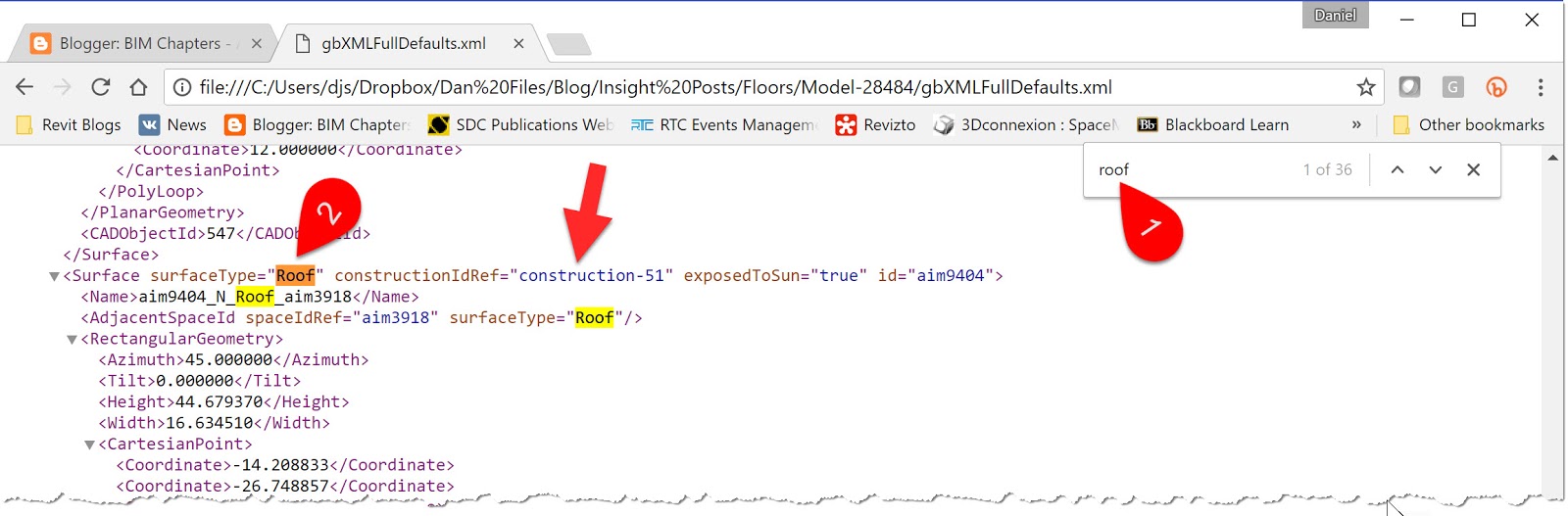
To verify this, after exporting the Revit EAM to Insight, you can use the Export command to write the GBXML to a file.
In the Export dialog, notice all the options we can export, including DOE2 and EnergyPlus.
In the example below, I exported everything... this all comes in a ZIP file.
Notice, roof shows up in a search; if you recall, there were no roof elements in the Revit model. Also, notice the referenced Construction ID.
If you search for construction-51 you see the definition matches the Conceptual Types found back in Revit!
Thus, once again, we don't have to be too concerned with how we model things in Revit. Revit's algorithm that creates the EAM is pretty smart!
What happens if the roof is modeled as a floor rather than a roof? In the section below I changed the roof, from my previous post, to a Revit floor element.
This model has a single floor element defining the entire roof. There are no roof elements within this model.
In the EAM, the floor is listed as a Raised Floor. I guess this analytical surface type is used if there is open air above or below (previous I said "just below").
To verify this, after exporting the Revit EAM to Insight, you can use the Export command to write the GBXML to a file.
In the Export dialog, notice all the options we can export, including DOE2 and EnergyPlus.
In the example below, I exported everything... this all comes in a ZIP file.
Notice, roof shows up in a search; if you recall, there were no roof elements in the Revit model. Also, notice the referenced Construction ID.
If you search for construction-51 you see the definition matches the Conceptual Types found back in Revit!
Thus, once again, we don't have to be too concerned with how we model things in Revit. Revit's algorithm that creates the EAM is pretty smart!
Labels:
Energy Modeling,
Insight,
Revit
Sunday, May 7, 2017
Autodesk Insight 360 - Floors; Part 2
Following my previous post, Autodesk Insight 360 - Floors; Part 1, I want to share a few more details about how analytical floors are automatically derived from the Revit model. I will close with a brief mention of what Insight's main competitor, Sefaira, requires in these situations.
Today's example will be based on the model shown below. This model has a balcony defined by extending the main level 2 floor outside the building. There is a similar situation happening with the roof, above the balcony.
Additionally, a portion of the level 2 floor is sloped as shown in the building section below.When the Energy Analytical Model (EAM) is created within Revit, we see how the various conditions just mentioned are handled. Notice that balcony, and its roof, are automatically separated and defined as a shade surface (same as the parapet as discussed in a previous post). Additionally, the analytical floor is sloped in the EAM.
Although a great product, Sefaira is not this simple as they want you to model things, in Revit, in a very specific way: How to model balconies, roof overhangs, and outside patios for Sefaira. You can model this way and Revit will still create the EAM properly. I like the fact that Insight is more flexible. This flexibility also means the results are more accurate when you consider some will forget, or not take the time to understand, these specific modelling requirements. Although I could not verify this just now, last I checked Sefaira did not support sloped floors.
With Revit and Insight 360, as long as there are no major gaps (e.g. a 10' hole in the shell) in the model the EAM generally turns out accurate and ready for analysis. This is great as this can be done in the main Revit model, even while the design team is cranking on the SD, DD or even CD's!
Fun stuff.
Labels:
Energy Modeling,
Insight,
Revit
Subscribe to:
Posts (Atom)